Download InvisiHire
Invisible overlay for Windows & Mac. Free to install.
Choose your platform
Windows
Windows 10 / 11 · 64-bit
Download .exe
macOS
macOS 12+ · Apple Silicon & Intel
Download .dmg
Keyboard shortcuts
Toggle mic on / off
Ctrl+Alt+M
Take screenshot
Ctrl+Alt+S
Send screenshot to AI
Ctrl+Alt+Enter
Previous answer
Ctrl+Alt+
Next answer
Ctrl+Alt+
Hide / show window
Ctrl+Shift+H
InvisiHire / Guide

How InvisiHire works

Every feature explained — from creating your first session to reading live AI answers during the interview.

01 / Overview

How the whole thing fits together

The web app is for setup. The desktop app handles the interview. They connect automatically when you click the launch button.

Web Setup
Create session, upload resume, pick model
Launch Overlay
Open desktop app, click Launch to start
Live Interview
AI hears questions, answers only you can see
Review
Every Q&A saved to your account

Nothing to configure on interview day. Create the session beforehand — the desktop app connects automatically when you open its URL.

2WEB SETUP

Create a session before your interview

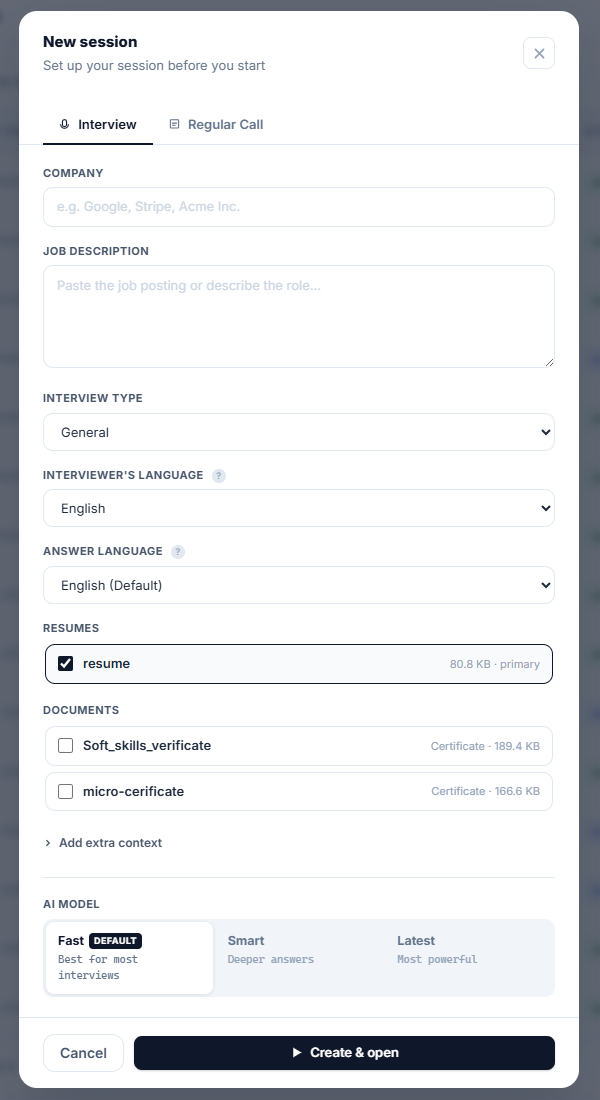
Go to Sessions in the web app and hit New Session.

Company and job description
Paste the job posting. The AI uses it to tailor every answer to the specific role.
Resume
Choose an uploaded resume. Answers reference your actual experience, not generic advice.
Interview type
Shapes how the AI frames answers.
GeneralTechnicalBehavioralSystem Design
Languages
Set separately: the language your interviewer speaks, and the language for AI answers. Auto-detect supports 99 languages.
AI model
Pick once — can't be changed mid-session.
Fast — lowest latencySmart — deeper answersLatest — most capable
New Session modal with all fields

After creating, click "Launch Desktop App" from the session page to open the overlay directly.
3THE OVERLAY

The desktop app has three states

A panel pinned to your screen edge. Always on top, invisible to screenshare, collapses to a thin strip when not needed.

State 1
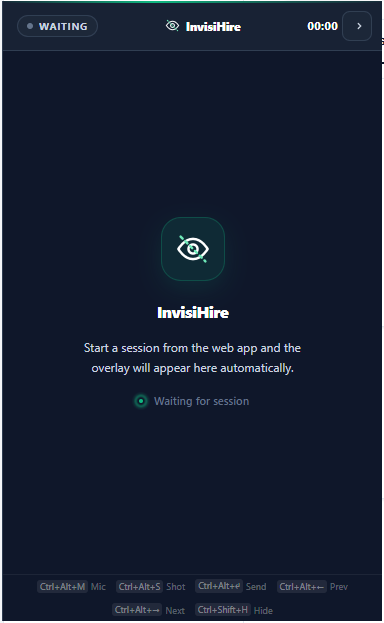
Waiting

No session linked. Click "Launch Desktop App" from the session page to connect.

Desktop overlay — waiting state
State 2
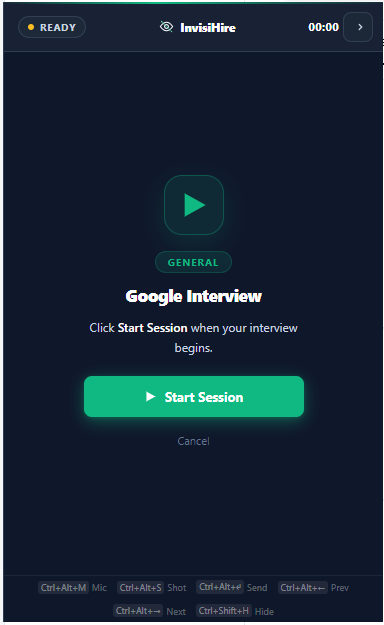
Ready

Session loaded. Hit Start Session the moment your interview begins.

Desktop overlay — ready state with Start Session button
State 3
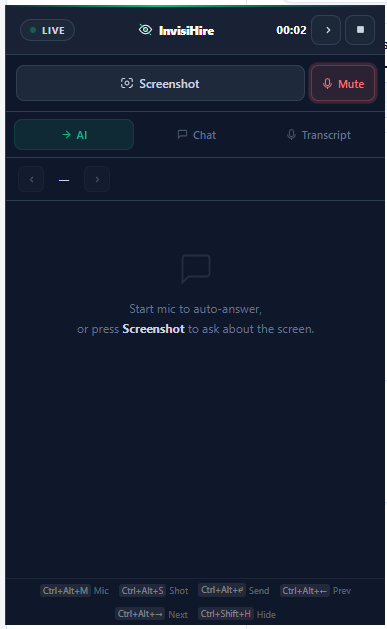
Active

Live timer in header. Three tabs: AI, Chat, Transcript.

Desktop overlay — active session with AI/Chat/Transcript tabs
4AI ANSWERS

Answers stream as the interviewer speaks

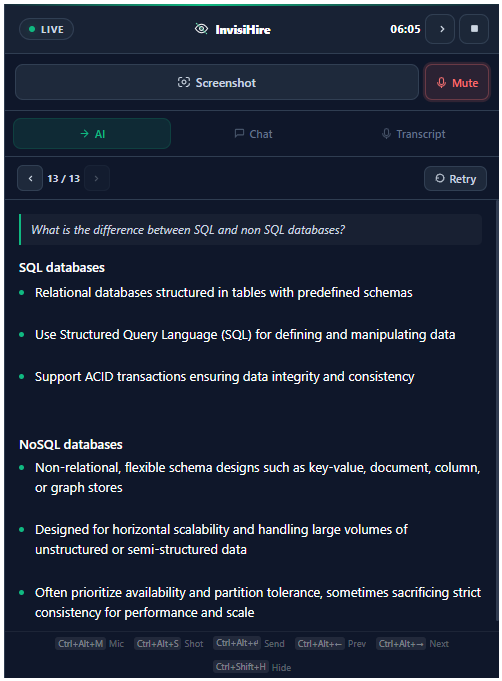
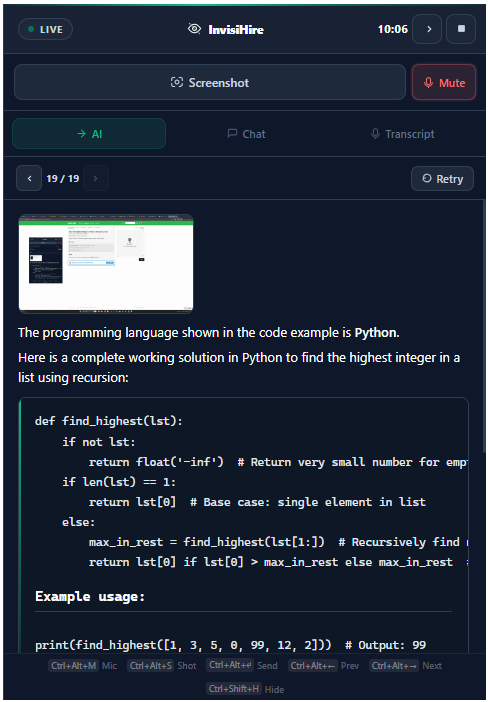
The AI tab is active by default. When the mic detects a question, the answer starts appearing before the interviewer finishes speaking.

Desktop overlay — AI tab with answer streaming in real time
Streaming — no waiting
Words appear on screen as the answer is generated. It waits for a pause in speech before responding.
Formatted answers
Bullet points, code blocks, and equations are all formatted clearly — easy to read at a glance.
History navigation
Prev / Next arrows or Ctrl+Alt+← / scroll through all answers from the session.
Retry
Re-fires the AI on the same question for a different angle. Each retry is saved to history.
Remembers the conversation
Keeps the last 10 questions in memory — so follow-up questions and references to earlier answers work correctly.
5SCREENSHOT MODE

Send a coding problem as an image

Press Ctrl+Alt+S to silently capture your screen. The overlay is excluded from the capture — the interviewer cannot tell it happened.

Capture and send
A thumbnail appears in the AI tab. You can take multiple screenshots — all sent together when you're ready.
Optional typed question
Leave blank — the AI reads the image on its own. Or type something like "what's the time complexity?" and hit Ctrl+Alt+Enter.
Works with live speech
Screenshot + mic transcript combine in one AI request — useful when an interviewer verbally explains a whiteboard problem.
Desktop overlay — screenshot thumbnail with Ask AI button
6CHAT TAB

Ask anything, any time

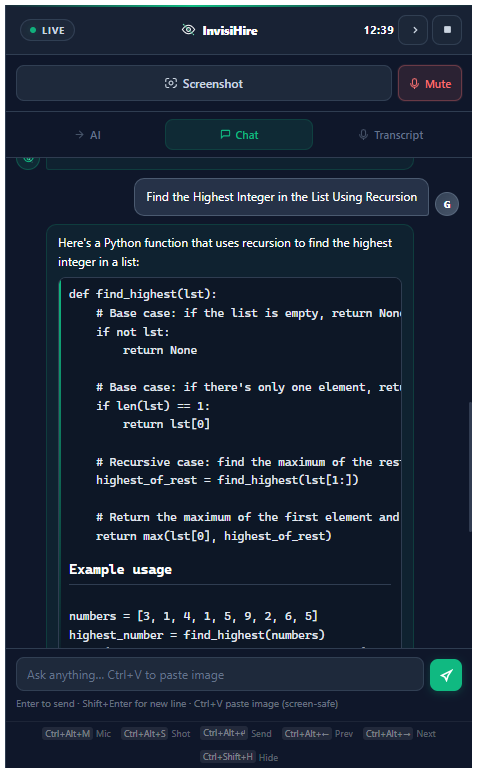
A free-form chat interface that runs independently of the mic. Type a question directly or paste an image — the mic keeps running in the background.

Desktop overlay — Chat tab with question and AI reply
Type any question
Enter to send, Shift+Enter for a new line. Same AI context as auto mode — knows your resume and job.
Paste images with Ctrl+V
Copy anything on screen and paste directly into chat. Sent to the AI with your message, excluded from screenshare.
Doesn't interrupt the mic
Chat and auto-detection run independently. You can chat while the mic still catches the next question.
Also in the overlay

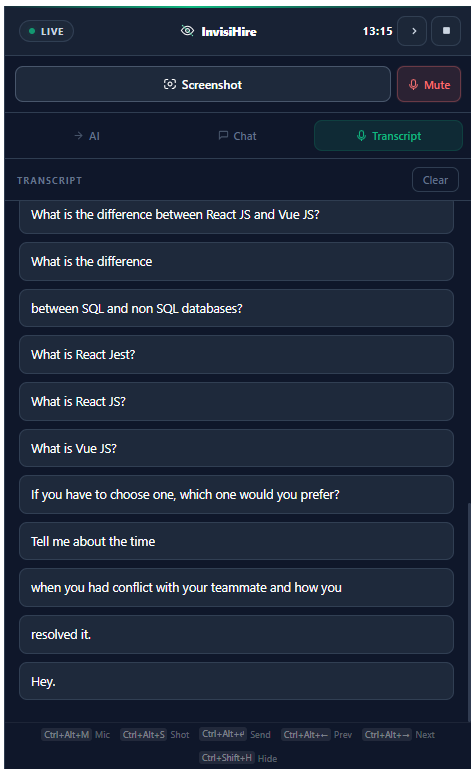
Transcript tab

Live running text of everything the mic picks up. Check it at the start of a session to confirm the mic is working. The Clear button wipes the display but doesn't affect saved answers.

Desktop overlay — Transcript tab with live speech text
7SHORTCUTS

Global keyboard shortcuts

Every action works even when InvisiHire is not the active window — no need to click into the overlay during an interview.

Ctrl+Alt+M
Toggle microphone
Start or mute the mic
Ctrl+Alt+S
Screenshot
Capture full desktop silently
Ctrl+Alt+Enter
Send to AI
Submit pending screenshot + question
Ctrl+Alt+←
Previous answer
Go back in answer history
Ctrl+Alt+→
Next answer
Go forward in answer history
Ctrl+Shift+H
Hide / show overlay
Collapse to strip or expand
8AFTER THE INTERVIEW

Every answer is saved automatically

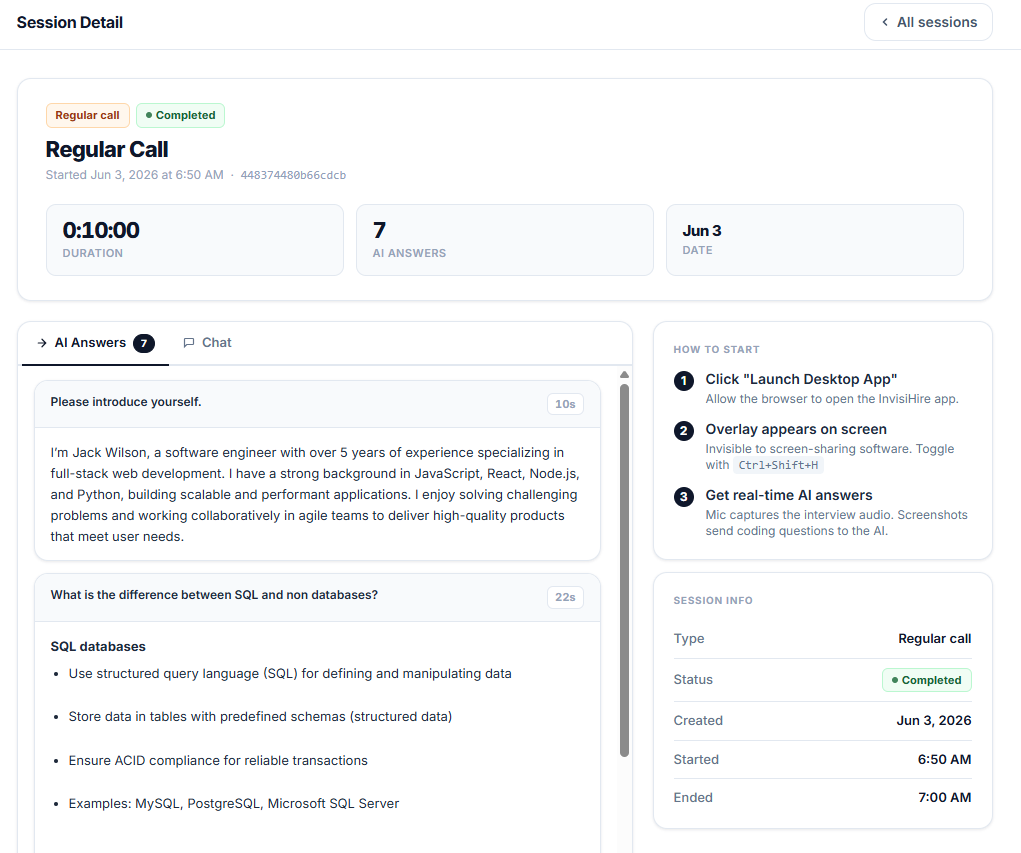
When the session ends, all AI answers and the questions that triggered them are saved to your account.

Q&A pairs with timestamps
Every answer, the question that triggered it, and the elapsed time — all visible on the session detail page.
Session duration
Total time is tracked. This is what counts against the free-tier 10-minute limit.
Delete when done
Deleting a session permanently removes all answers and transcript from your account.
Web app — session detail with Q&A pairs and duration
9PLANS

How time and credits work

InvisiHire measures usage in interview minutes.

Free
$0
10 min per session, 10 min cooldown between sessions. No card required.
Good for trying it out
Credits
One-time packs
Buy blocks of interview time. Never expire, stack across purchases, no subscription.
Good for occasional use
Lifetime
$239 once
One payment, unlimited access forever. All future features included. Non-refundable.
Best long-term value