Real-time answers in your phone's browser, for interviews, sales calls and meetings. It labels every speaker, answers questions as they are asked and writes a summary when you are done. Nothing to install, and it never appears on the screen you share.
Your phone sits beside your laptop, listens to the call and shows you what you could say next.
Off every shared screen
Your phone is a separate device. Whatever you share from your computer, your answers are never part of it.
Nothing to install
Open your session in Safari or Chrome and start. No app store, no download, nothing on your work laptop.
Works for any conversation
Hiring rounds, sales and client calls, team meetings, or face to face across a table.
02 / Calls and meetings
Not only interviews
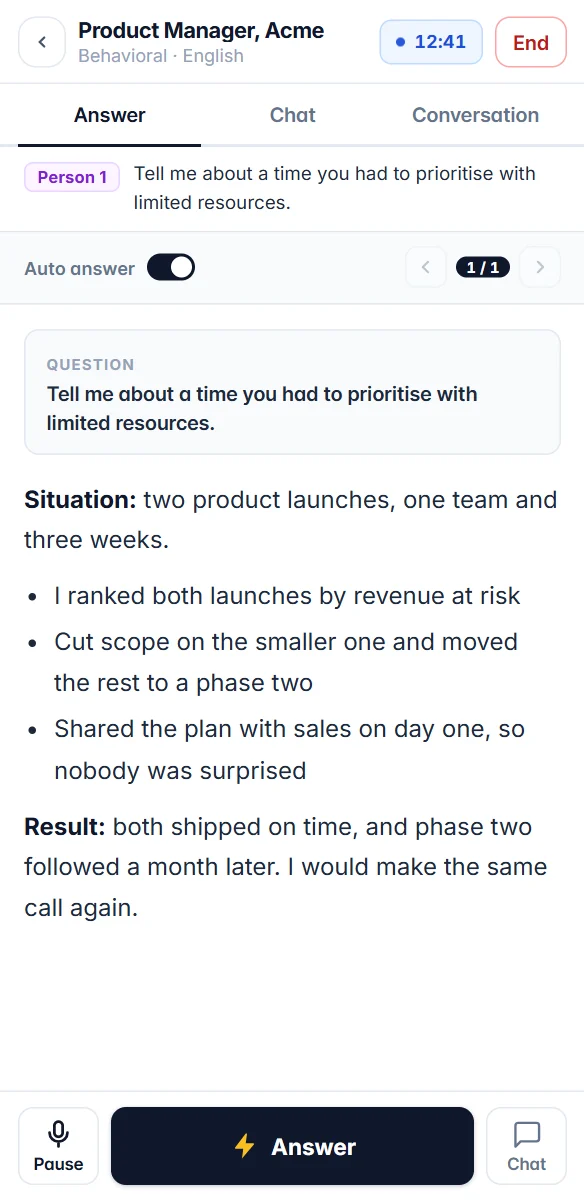
Put your phone on the table in any call or meeting. InvisiHire keeps track of who said what, helps with questions as they come up, and sums it all up at the end.
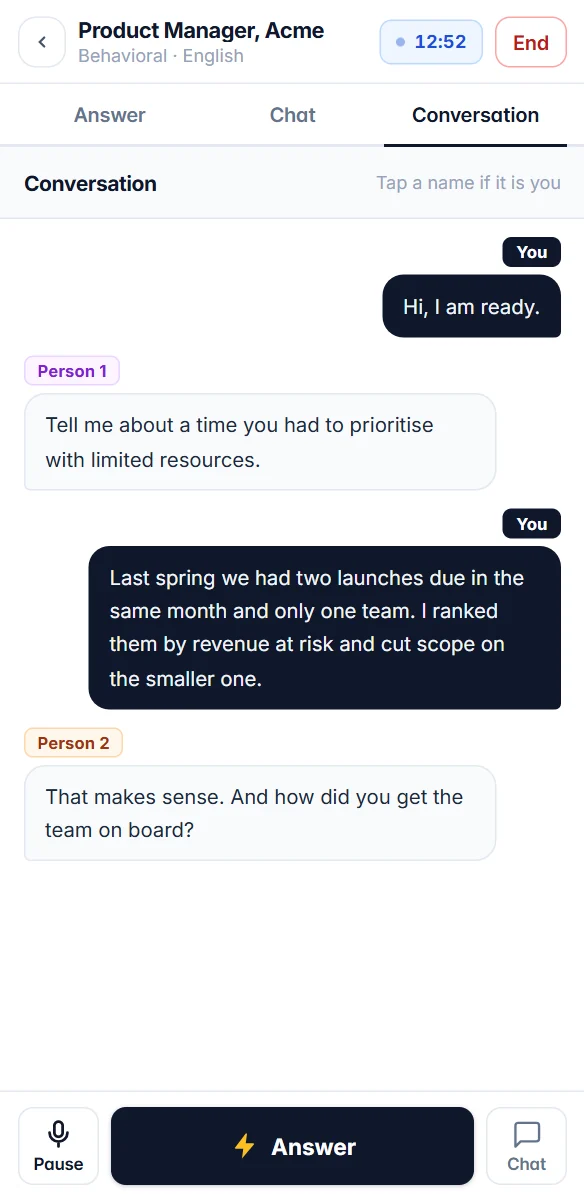
Every speaker labelled
Your voice is You, everyone else is Person 1, Person 2 and so on, in the order they first speak.
Help in the moment
A client asks about pricing, a manager asks for numbers: tap Answer and get a reply you can use straight away.
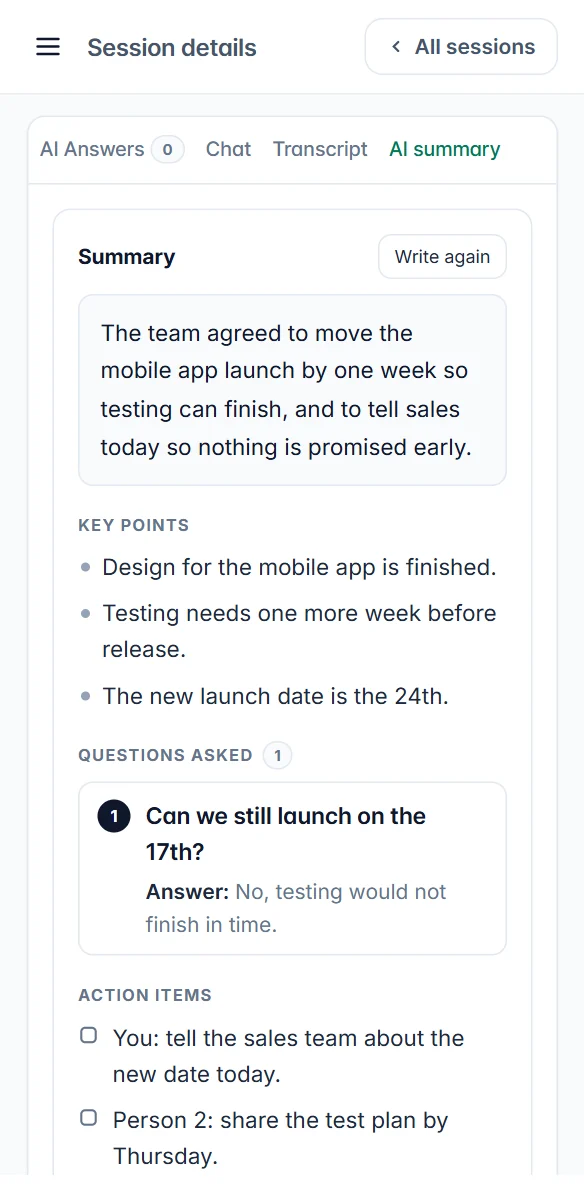
A summary with action items
Key points, decisions, questions asked and who owes what, written when you ask for it.
03 / What you need
Five things, and you probably have them all
An iPhone or Android phoneSafari or Chrome on iPhone, Chrome on Android.
Your InvisiHire accountThe same account, minutes and free sessions as the desktop app.
A session set upCreated on the website, on your phone or your computer.
Microphone accessYour phone asks once. InvisiHire only listens while a session runs.
An internet connectionWi-Fi or mobile data both work.
04 / Start in four steps
From your session to live answers in about a minute
Create a session
On the InvisiHire website, add the company, the role and the language the other person speaks. Do it the day before on your computer, or on your phone a few minutes before.
Open it on your phone and tap Start in browser
Sign in on your phone, go to Sessions and open the session. On a phone the microphone is used automatically, so there is nothing to choose. Then tap Start listening.
Allow the microphone
Tap Allow when your phone asks. If you blocked it by mistake, tap the aA or lock icon next to the address, allow the microphone, and start again.
Say "Hi, I am ready"
This tells InvisiHire which voice is yours, so it only answers the other person. Your session time starts after this, not before.
Tip: run a two minute test with a friend or a video before the real thing, so you know where to put the phone and how the answers look.
05 / Where to put your phone
The phone has to hear the other person
It listens through its own microphone, so where you put it matters more than anything else.
Video call on your laptop
Play the call through the laptop's speakers and put the phone close to them, to one side of the screen where you can glance at it.
Face to face
Lay the phone flat on the table, screen up. It hears everyone in the room and labels each voice.
Keep the screen on
InvisiHire keeps your screen awake while it listens. Keep the page open and plug in a charger for long sessions.
Headphones on the call
Headphones keep the sound away from the phone. If you need them, use the desktop app on your computer instead.
06 / During the call
Everything is one tap away
Three tabs and one big button. Nothing moves while you are reading.
Answers arrive on their own
Auto answer is on, so a suggested answer appears as soon as a question is asked. Turn it off to answer only when you tap.
Missed one? Tap Answer
It answers the last thing that was said, even a long question in two parts.
Read without jumps
While you scroll an answer, new ones wait. The count turns blue and the arrows take you to the newest.
A labelled conversation
The Conversation tab shows everything said, with You and Person 1, Person 2, so you never lose the thread.
Chat, with photos
Type any question in the Chat tab, or take a photo of a coding problem or a slide and ask about it.
Pause and end
Pause stops listening for a moment. End finishes the session, and you only pay for the minutes used.
Also / In a laptop browser
The same thing works in a computer's browser
Choose On this computer, share the meeting's tab with its audio, and allow your microphone. Your microphone shows as You and the meeting's voices as Person 1, 2. Your shared screen appears beside the answers, so you can take screenshots of a coding question.
Sharing your whole screen? A browser page is visible on a full screen share. Share only the meeting window or a tab, keep InvisiHire on your phone, or use the desktop app, which stays hidden from screen sharing.
07 / Afterwards
Everything is saved to read back
Whatever the call, the whole conversation stays in your account, ready to review or summarise.
The full transcript
Who said what and when, with your answers marked "You said" and each suggested answer in place.
A summary when you want it
Tap Write summary for the key points, the questions asked, action items and tips for next time.
Ask about the session
"What did they ask me?" or "Write the follow up email." Answers come only from that conversation.
Yours to keep or delete
Audio is never stored. The text stays in your account until you delete it.
08 / Phone or desktop app
Which one should you use?
Both use the same account and minutes. Pick whichever suits the call.
Phone (browser)
Desktop app
Install
Nothing
Windows app
Runs on
iPhone, Android, any computer browser
Windows 10 and 11
On a shared screen
Never, it is on a separate device
Hidden, even on a full screen share
Hears the other side
Through the phone's microphone
Straight from your computer's sound
Headphones
Not on the call
Yes
Best for
A second screen, phone calls and meetings in person
Video calls where you share your screen
FAQ
Questions about using it on your phone
Can the interviewer see InvisiHire on my phone?
No. Your phone is a separate device, so nothing on it is part of what you share from your computer. The other person only sees what you choose to share.
Does it work for meetings and sales calls?
Yes. It labels each speaker as You, Person 1 and Person 2, answers questions as they come up, and when the call ends it can write a summary with the key points, decisions and action items.
Do I need to install an app?
No. InvisiHire runs in your phone's browser. Open your session in Safari or Chrome, tap Start in browser, and allow the microphone.
Which phones does it work on?
iPhone with Safari or Chrome, and Android with Chrome. Keep the browser up to date for the best results. It also works in a browser on a computer.
Can I wear headphones?
The phone listens through its microphone, so it has to hear the other person. Play the call through your laptop's speakers and keep the phone close. If you need headphones, use the desktop app on your computer instead.
Does it cost extra to use on my phone?
No. Your phone uses the same account, the same minutes and the same free sessions as the desktop app.
What if the page closes or my phone locks?
InvisiHire keeps the screen on while it listens. If you end the session or close the page, it stops and you only pay for the time used. If the page is interrupted, open the session again and tap Continue listening. Your conversation and answers so far are kept.
Which languages does it understand?
The same 60+ languages as the desktop app. You pick the language the other person speaks and the language you want answers in when you create the session.
Is my audio stored?
No. Audio is heard in real time and never stored. The questions, answers and conversation from each session are saved to your account so you can read them back, and you can delete them any time.
Try it before your next interview
Create a session, open it on your phone and say "Hi, I am ready". Free sessions are included, no card needed.